
Version History
Browse, preview, and restore saved versions of your document.
FAQ ↓Jenni saves versions automatically as you edit. Version History lets you browse the versions available for your document, preview them, and restore one with a single click.
Opening Version History
Open version history through either of these paths:
- On desktop, open the three-dot menu (⋯) at the far right of the top navigation bar — not the ⋮ menu in the formatting toolbar — and select Version history
- On mobile, open the top navigation menu and select Version history
These menus remain available while a document is still in the setup screen with an empty title, so you can restore an earlier revision before completing setup. Version history opens full screen.
Layout
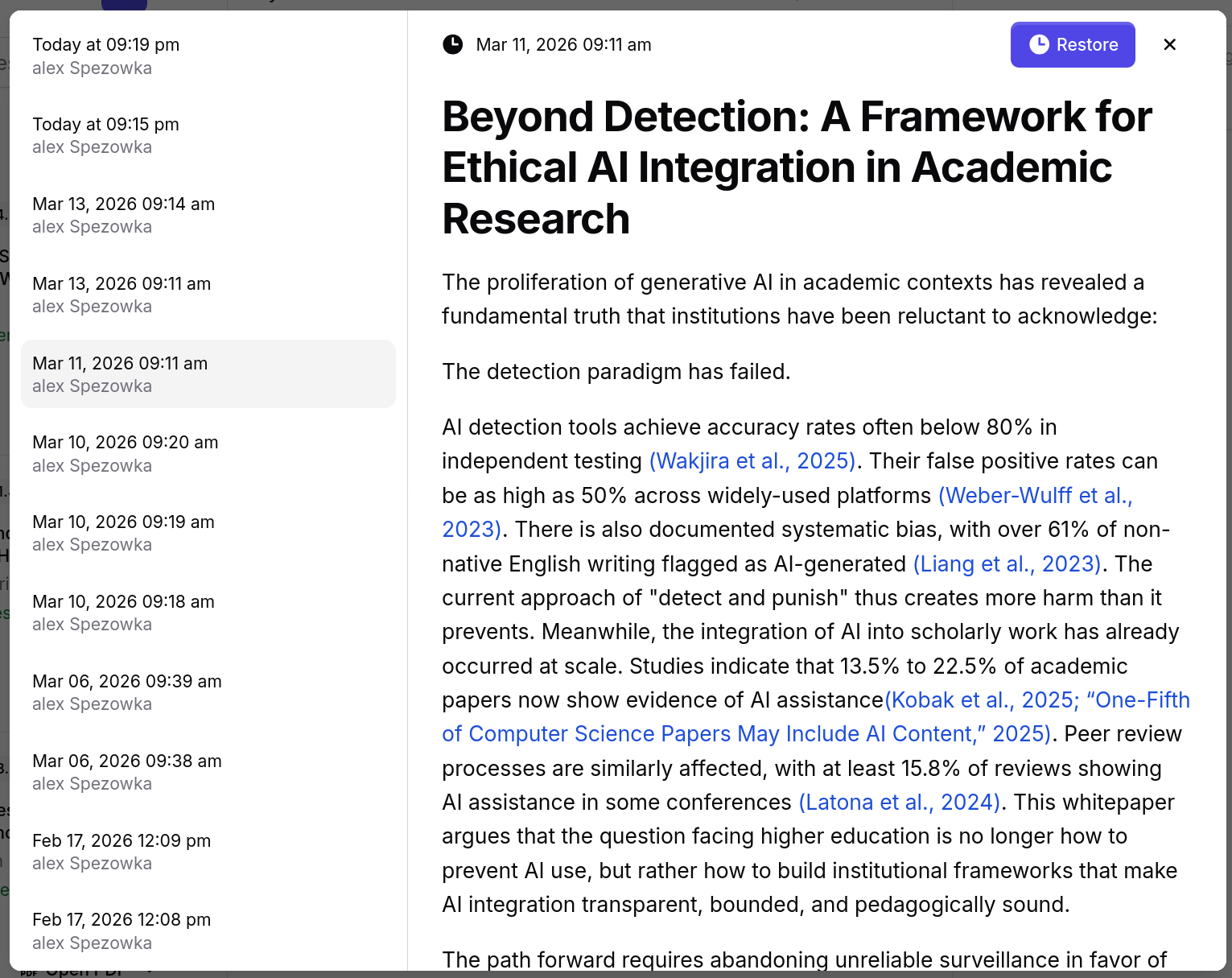
On desktop, a timeline beside the document lists versions under day headings, with the newest at the top. The document preview shows at reading width. Each row shows a marker, what happened, and the time:
- Edits — a writing session. Saves less than 5 minutes apart are grouped into one row; in shared documents the row shows the authors’ names. Click the count to show the versions in the session.
- AI Edit, Added chat response, Jenni’s chat edits, or Accepted all suggestions — a change made by AI.
- Restored an earlier version — a restore.
The newest row is Current version. Select a row to see what it changed. Turn on Changes since this version to compare the selected version with the current version. In a document with one author, inserted and deleted text use the same colours as AI suggestions; in a shared document, each author has a colour.
On mobile, version history opens on the same timeline. Tap a row to open its preview, then use the back control to return to the list.
How Versions Are Created
Versions are created automatically as you and your collaborators edit. There is no manual save step. Jenni groups nearby edits into discrete version entries so the list stays navigable rather than recording every keystroke.
Before AI Edit applies a change, before Add to document inserts a chat response, before Chat applies edits to your document, and before Accept all applies review suggestions, Jenni saves a checkpoint version. Restore an AI row to return the document to just before that change.
Availability
Version history is available on all subscription plans, including Free.
Working with Versions
Previewing a Version
Click any version in the list to load a read-only rendering of the document as it existed at that point. The preview includes all text, formatting, and comments that were present in that version.
Use previews to compare how the document has changed over time before deciding whether to restore.
Restoring a Version
- Select the version you want to restore
- Click Restore
- Confirm Restore the document to this version? (for an AI row, Restore the document to just before this change?)
- The document reverts to the selected version’s content
Restoring does not erase history. A new version entry is created that records the restore action. If you change your mind, you can revert again by restoring the version that existed just before the restore.
The Restore button is disabled when the current (most recent) version is selected, since there is nothing to revert to.
Collaboration and Version History
In shared documents, version entries show which collaborator made each set of changes. This makes it possible to trace who edited what and when, which is useful for accountability in group projects.
Troubleshooting
| Problem | Cause | Fix |
|---|---|---|
| No versions appear | The document is new and has no edits beyond the initial state | Make some edits and reopen version history |
| Restore button is disabled | The currently selected version is already the latest | Select an older version to enable the Restore button |
| Version list loads slowly | Documents with very long edit histories may take a moment to appear | Wait a few seconds for the list to load |