
Citation Management
Search, insert, format, and manage citations with automatic bibliography generation.
FAQ ↓Jenni handles citations from insertion through to final bibliography. Search for sources, pick a style, and the formatted references take care of themselves.

Adding Citations
There are several ways to insert citations while writing.
Quick Insert
Click Cite in the editor toolbar or type @ in the document. A search panel appears where you can look up sources by title, author, DOI, URL, or keyword. Select a result and the citation is inserted at your cursor position.
The @ Shortcut
Type @ while writing to open the citation search inline. Search and insert a source without leaving the flow of your sentence.
Highlight and Cite
Select any sentence or paragraph, then click Cite in the selection toolbar. The Citation Search Manager opens, where you can search for relevant sources, toggle between your Library and web results, filter by year or relevance, and click Cite to insert. Jenni adds the source to your reference list automatically.
Cite from Your Library
Click the Library tab in the right sidebar, find the source you want, place your cursor in your draft where the citation should appear, and click Cite on the library entry. The in-text citation and reference list entry are added in one step.
Find Papers Sidebar
Open Find papers from the editor sidebar for a dedicated research search space. You can search by topic, question, title, author, DOI, or a sentence from your draft without opening the inline citation menu.
- Start from a suggested query based on your document title, a recent search, or an example query
- Filter by publication year or citation count
- Sort by relevance, publication date, or citation count
- Click a result to cite it in the open document
After insertion, the result briefly changes to Cited. If no document is open, you can still search and inspect results, but Jenni asks you to open a document before inserting a citation.
Custom Citations
Open citation search and click Add custom citation to enter source details yourself. If you only need a temporary marker, click Add placeholder citation instead. When a search returns no results, both actions appear directly in the empty state; the Library empty state also offers Upload Sources.
Search by Identifier
Paste a DOI, PMID, PMCID, arXiv identifier, doi.org URL, PubMed URL, or PMC URL into citation search. Jenni checks for an exact match before showing normal ranked results. You can also paste a full reference that contains one of these identifiers. If Jenni cannot resolve it directly, the same text is used for normal citation search.
Smart Citation Paste
Copy a DOI (e.g., 10.1016/j.biotechadv.2011.08.021) and paste it directly into the editor. Jenni prompts you to choose:
- Paste as Citation – inserts an in-text citation and adds the full reference to your bibliography
- Paste as Link – adds a clickable link to the source
- Paste as text – inserts the DOI as regular text
This menu appears only when the pasted content is a standalone DOI or PMID URL. A bibliography or other block of text that happens to contain an identifier pastes as regular content.
Search Filters
In citation search and Find papers, open Filter to narrow results by:
- Publish year sets the earliest publication year to include. Choose a year from the grid; use the arrows to move between decades. The current decade opens when no year is selected.
- Citation count sets the minimum number of citations a result must have
Use the All, Discover, and Library tabs to choose whether results come from all available sources, external discovery, or your Library. The year and citation-count filters are saved for the current document until you clear or change them.
Document setup and AI Chat provide additional citation controls for publication year, impact factor, minimum citation count, and whether to include preprints.
Include or Exclude Preprints
Open the document’s citation settings and use Include preprints to control whether Jenni can suggest preprints and other non-peer-reviewed sources. The setting is enabled by default. Turn it off when you want citation suggestions limited to peer-reviewed work types; the choice applies to autocomplete and review suggestions for that document.
When creating a document on mobile, publication recency and Include preprints remain visible in the setup. Tap Advanced filters to reveal the impact-factor and minimum-citation-count controls. Desktop shows all four controls directly.
Set Citation Requirements in a Document Prompt
When you create a document, include citation requirements in the prompt alongside your topic. Jenni can apply a publication-year range, citation style, peer-reviewed-only preference, minimum citation count, or impact-factor threshold to the new document.
For example: Write a literature review using APA citations from peer-reviewed papers published since 2020.
Jenni preserves citation settings you selected manually. Open the document’s citation settings at any time to review or change what was applied.
Choose Sources for a Document
In document citation settings, enable Auto-cite from Library; in the new-document setup, enable Library search. Then open Configure context. You can add individual sources, one collection, or both. Your choices appear as pills; remove a pill to stop using it, or click a source pill to preview its PDF.
Jenni searches across the union of the sources and collection you selected. You can pin multiple individual sources but only one collection at a time. Leave the selector empty when Jenni should use your full Library.
Citation Styles
Default Styles
Five styles are available directly from the dropdown:
| Style | Format |
|---|---|
| APA 7th Edition | (Smith, 2020) |
| MLA 9th Edition | (Smith 45) |
| Chicago 17th (Author-Date) | (Smith 2020) |
| IEEE | [1] |
| Harvard | (Smith, 2020) |
Additional Styles
The dropdown includes a search field that queries the Zotero CSL Style Repository. Over 10,000 styles are available, including Vancouver, BMJ, PLOS ONE, Nature, and journal-specific styles. Select any style from the search results to apply it. You do not need to download or manually upload style files.
Changing Styles
Click Citation Style in the toolbar to open the citation format dialog. Search for a style or select one from the list; full style names wrap onto additional lines so you can distinguish similar names. Use Localized for below the style list to choose a locale, adjust Show page number in citations, and switch the preview between In-text, Bibliography, and Captions to inspect citations, references, and localized figure and table labels. Click Done to close the dialog. Your citations and bibliography update to match the selection.
Citation Locale
Open the Localized for selector below the style list and choose a locale. On mobile it opens as a separate list. The selector shows the language’s own name and locale code; options in the open list show the interface-language name beneath the native name. Default uses the style’s locale. Locales control terms and formatting such as page labels, dates, and localized citation text. Numeric styles like IEEE and Vancouver also respect the selected locale.
Use Show page number in citations to control whether page locators appear in formatted citations. The style, locale, and locator preference are saved with the document; new documents can inherit your document defaults. Editor citations, chat citations, the references panel, clipboard output, and DOCX export all use the selected locale and locator preference.
In-Text Citation Types
Jenni supports several in-text citation formats depending on context and style:
- Parenthetical (Smith, 2020)
- Narrative Smith (2020)
- Multiple sources (Smith, 2020; Jones, 2019)
- Grouped collapses multiple works by the same author into a single reference
- With page numbers (Smith, 2020, p. 45) or (Smith, 2020, pp. 45–50)
The available formats depend on the active citation style. Numeric styles like IEEE use bracketed numbers rather than author-date pairs.
Editing Citations
Click any in-text citation to open the citation editor. From there you can:
- Use Locator page to add or correct the cited page number. The field is available for paginated source types, including chapters, entries, collections, legal cases, hearings, legislation, interviews, and speeches.
- Add a prefix (e.g., “see”) or suffix (e.g., “emphasis added”)
- Switch between parenthetical and narrative forms
- Remove the citation entirely
Changes apply immediately and the bibliography updates to reflect any edits.
Switching Between Narrative and Parenthetical
Jenni supports two common in-text citation formats:
- Narrative – Use when referring to a source by name: Smith (2020) argues that…
- Parenthetical – Use when quoting or paraphrasing: (Smith, 2020)
To switch, click the in-text citation in your document, then choose Parenthetical or Narrative in the citation editor.
Bibliography
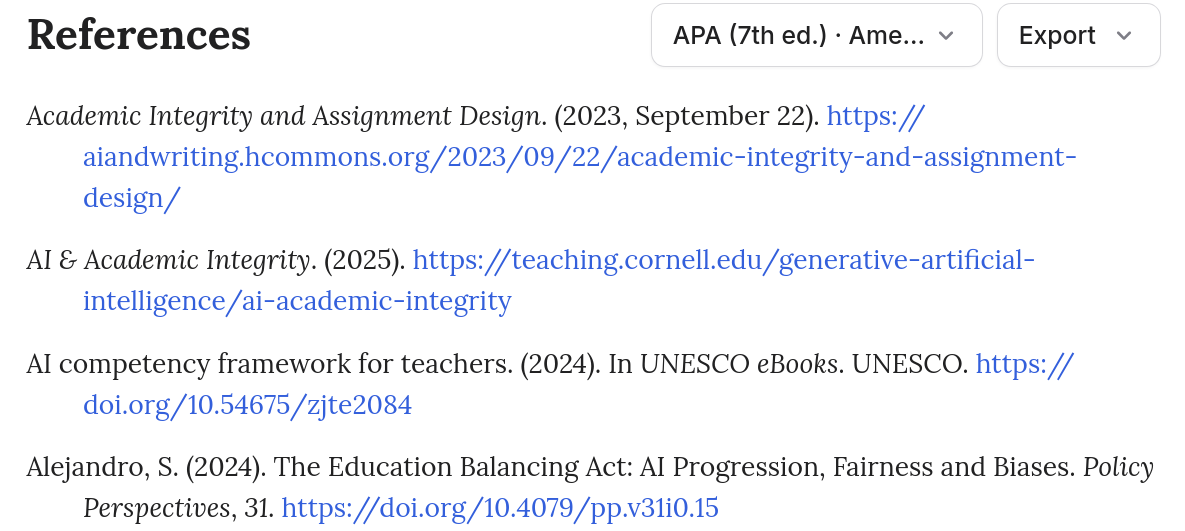
Jenni generates a bibliography at the end of your document automatically. It includes every source you have cited in the text. The section heading adapts to match your citation style:
| Citation Style Type | Heading |
|---|---|
| Note-based styles (Chicago Notes-Bibliography, Turabian, OSCOLA) | Bibliography |
| MLA | Works Cited |
| All other styles (APA, Harvard, IEEE, Vancouver, etc.) | References |
The bibliography:
- Updates in real time as you add or remove citations
- Follows all formatting rules of the active citation style (indentation, italics, ordering)
- Sorts entries according to the style specification (alphabetical for APA, numbered for IEEE, and so on)
- Removes references automatically when you delete the corresponding in-text citation
Different works with the same title retain separate references when their source details distinguish them. Citing the same work again uses its existing reference number in numbered styles.
You do not need to create or manage the bibliography manually.
Save Cited Sources to Your Library
When your document contains citations, the References toolbar shows Sources followed by the number of cited works. Click it to open Sources in this document.
- Click Save on one source to add it to your Library or choose its collections. A saved item shows Library source.
- Click Save to library at the bottom of the dialog to save all cited sources. You can leave every collection unselected to save them to the Library root, or select one or more collections before clicking Save # sources.
- On mobile, the same workflow opens in a drawer and the collection picker opens above it.
Exporting Your Reference List
From the reference list at the bottom of your document, you can:
- Copy to Clipboard – paste the formatted list into another document
- Copy as BibTeX – copy BibTeX-formatted entries to your clipboard
- Download as BibTeX – save a
.bibfile for use in LaTeX editors, Overleaf, or other reference managers
Reference Manager Integration
Zotero
Choose Import from Zotero from the Library upload menu or connect Zotero from Settings > Connections. Jenni redirects you to authorize access. Once connected, select a collection from your personal library or a readable Zotero group library. Sources appear in your Jenni Library and become available in citation search.
This is a one-way import. Changes made in Zotero after the initial import are not synced automatically. To pull in new sources, go to Settings > Connections and re-import.
Mendeley
The Mendeley flow works the same way. Click Import from Mendeley, authorize, select a collection, and import. Like Zotero, this is a one-way operation. Re-import from Settings > Connections to pick up new additions.
Advanced Features
DOI Resolution
Paste a DOI, PMID, PMCID, arXiv identifier, or supported identifier URL into the citation search field. Jenni returns the exact bibliographic record when it can resolve the identifier; select the result to insert a properly formatted citation.
URL Import
Paste a URL to a paper or web page. Jenni extracts available metadata and creates a citation entry.
BibTeX Import and Export
Import citations from a .bib file to add them to your library in bulk. You can also export your bibliography as BibTeX for use in LaTeX editors or other reference managers.
PDF Upload with Auto-Metadata
Upload a PDF directly. Jenni extracts metadata (title, authors, year, DOI) and creates a library entry that you can cite from.
Contributor Roles
Source details include a Role dropdown for each contributor. Use it to identify authors, editors, translators, directors, producers, hosts, interviewers, narrators, and other supported roles. Jenni uses these roles when formatting in-text citations and bibliographies.
Contributor roles imported from Zotero, BibTeX, BibLaTeX, RIS, or DOI metadata are preserved when available. You can correct them from the source details panel.
Previewing Suggested Citations
Autocomplete can show suggested citations before you accept the surrounding text. Hover over a suggested citation to preview its source details. Click it to open the citation modal in read-only mode without changing the suggestion.
Resolving Source Quality Flags
When a Source Quality review flags a citation, click the citation to inspect the warning. You can keep it, remove it, replace a preprint with a known published version, or search for a replacement inside the issue popover.
Citation Matching on Import
When you import a Word document that contains references, Jenni attempts to reconnect in-text citations with the matching references. Suggested matches appear as pending items that you can confirm or correct individually, so you do not have to add every citation again.
Keyboard Shortcuts
| Shortcut | Action |
|---|---|
@ | Open citation search in the document |
Esc | Close citation panel |
Enter | Select highlighted result |
↑ / ↓ | Navigate search results |
Enter / Space on a focused in-text citation | Open or close its citation editor |
Where Citations Come From
Jenni searches scholarly sources from journals, books, preprints, and conference proceedings. You can search by title, author, DOI, or PMID, then review the source details before inserting a citation.
When you upload a PDF, Jenni also uses the paper’s contents to support AI Autocomplete, AI Chat analysis, and reference suggestions.
How Jenni Avoids Fabricated Citations
Jenni attaches citations to identifiable sources and shows the source details so you can verify them. For the most accurate results, search by DOI or exact title, or upload the complete PDF rather than metadata alone. Always review a source before relying on it in your work.
Best Practices
- Search by DOI when you have it. This returns the most accurate result.
- Use filters to narrow large result sets instead of scrolling through hundreds of matches.
- Set your citation style early in the writing process to avoid formatting surprises.
- Re-import from Zotero or Mendeley periodically if you are actively adding sources there.
- In the Citation Manager, click the bookmark icon on any web result to save it to your Library for later use.
Troubleshooting
| Problem | Solution |
|---|---|
| Cannot find a specific paper | Try searching by DOI or the exact title. Some preprints and grey literature may not appear in the default search index. |
| Wrong citation style applied | Open the Citation Style dropdown and confirm the correct style is selected. Some styles have similar names (e.g., APA 6th vs. 7th). |
| Citation or bibliography still shows old details after a Library edit | Editing a source in your Library does not change citations already placed in a document — each one keeps its own copy of the source details, so refreshing the page will not update it. Click the citation in your text and edit it there, or delete it and reinsert it from the Library. If the bibliography entry still looks unchanged, edit the first place that source is cited: the entry is built from that first citation. |
| Citations from Word import not matching | Open pending citations and manually confirm or correct each match. Jenni relies on metadata parsing, which can miss entries with unusual formatting. |
Frequently Asked Questions
How do I add citations in Jenni?
@ inline while writing. You can also highlight text and click Cite in the selection toolbar.How do I change my citation style in Jenni?
Can I import citations from Zotero or Mendeley?
How do I export my bibliography as BibTeX?
.bib file for use in LaTeX editors or other reference managers.