
Reviews
AI-powered proofreading, claim verification, source-quality checks, and academic review.
FAQ ↓Reviews runs AI analysis across your document and returns inline suggestions, citation warnings, or reviewer feedback that you can work through one by one. Review types include Proofread for grammar and style, Claim Confidence for factual assertions, Source Quality for citation risk, Tone of Voice for style alignment, and Peer Review for an academic reviewer-style assessment.
Accessing Reviews
Click Review in the editor’s top bar to open the Reviews panel on the right. The panel shows available review types and any previous results.
The Review button appears once your document has content. On a new, empty document the editor shows the setup screen instead — add some text, import a Word file, or skip the setup steps, and the button appears in the top bar.
Running a Review
Full Document
- Click the review type you want to run: Proofread, Claim Confidence, Source Quality, Tone of Voice, or Peer Review
- Click Run review
- A progress indicator appears: “Thinking for X seconds” with a section progress bar (e.g., “3/5 sections”)
- When complete, results appear in the panel
Selected Text
- Select the text you want to review
- Open the context menu (right-click or use the floating toolbar)
- Choose Review, then select the review type
- Results are scoped to your selection and marked with a Selection badge in the panel
Understanding Results
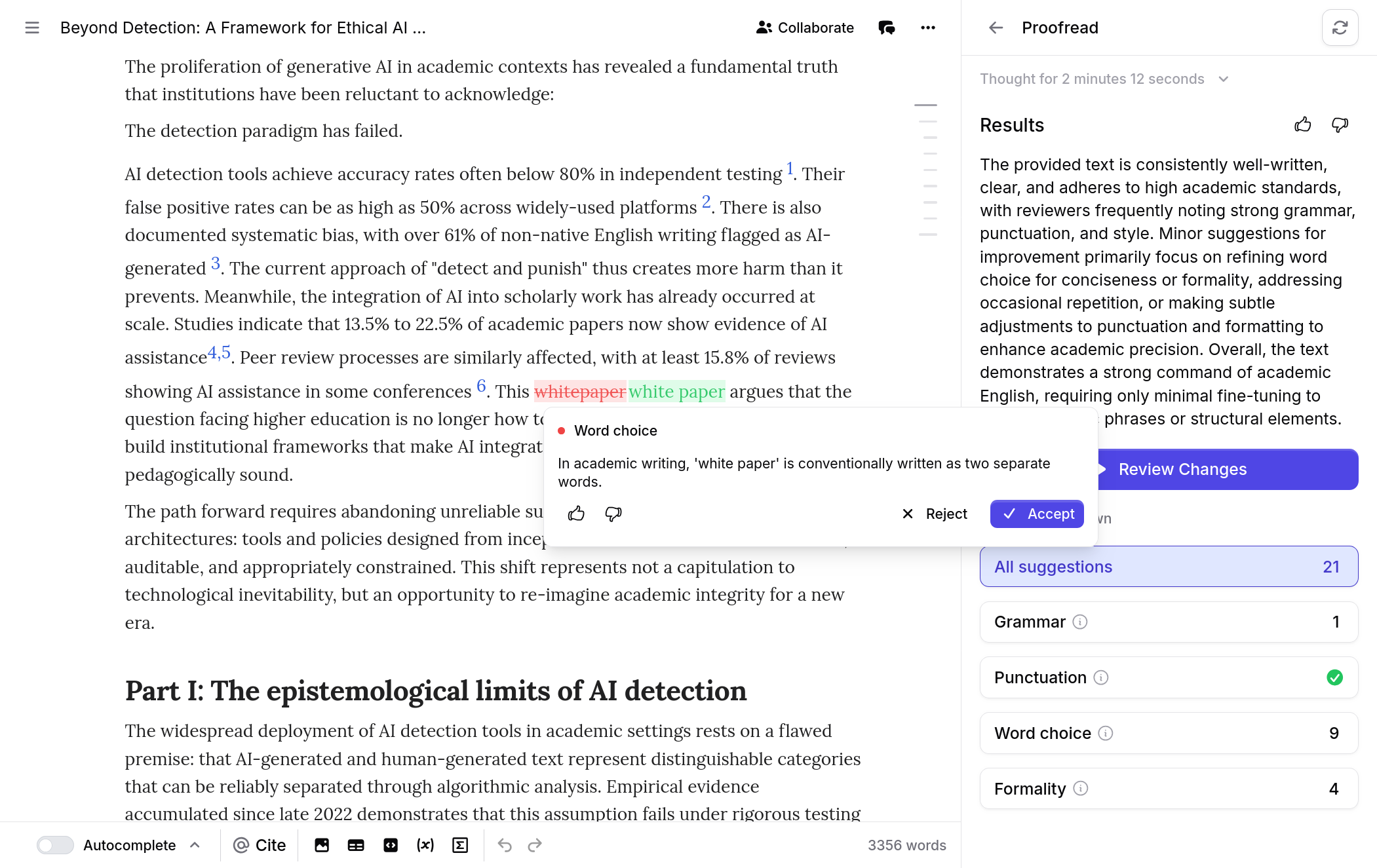
Results open with an expandable Summary that describes the overall findings. Below the summary, category breakdown buttons show how many suggestions fall into each category. Click a category button to filter the results list.
Review Categories
Proofread
Proofread follows your document language and respects locale-specific spelling, including British English.
| Category | What It Catches |
|---|---|
| Grammar | Spelling and typos, subject-verb agreement, tense consistency, article usage, modifier placement |
| Punctuation | Missing or misplaced commas, semicolons, periods, and quotation marks |
| Word choice | Imprecise language, malapropisms, commonly confused words |
| Formality | Contractions, colloquialisms, or casual phrasing in formal writing |
| Passive voice | Sentences where the subject receives the action rather than performing it |
| Repetition | Words or phrases repeated within close proximity |
| Formatting | Inconsistent heading levels, list formatting, or spacing issues |
Claim Confidence
| Category | What It Flags |
|---|---|
| Unsupported | Claims with no citation or supporting evidence |
| Weakly supported | Claims backed by a source that does not strongly support the assertion |
| Overstated | Language that exaggerates what the cited source actually demonstrates |
| Misrepresented | Claims attributed to a source that does not make that argument |
| Contradicted | Claims that conflict with evidence in the cited source or elsewhere in the document |
| Unverifiable | Claims that cannot be checked against available sources |
Source Quality
Source Quality checks the citations already in your document and groups potential issues into five categories:
| Category | What It Catches |
|---|---|
| Retracted | Sources that have been formally retracted |
| Preprint | Preprints, including those with a known published version |
| Non-research source | Editorials, letters, errata, datasets, grants, peer reviews, retraction notices, and other paratext |
| Rarely cited | Sources with low citation counts for their publication age |
| Unverified journal | Sources published in journals Jenni cannot verify confidently |
After the review runs, the results panel shows an issue summary, category filters, and bibliography notes about publication age and venue spread when that information is available. Select a category to focus on one issue type, then click Review Changes to move through flagged citations in document order.
Click a flagged citation in the editor to see why it was flagged and choose an action:
- Keep resolves the warning without changing the citation
- Remove removes the citation from that citation node
- Replace with published version swaps a preprint for a known published version when Jenni finds one
- Find replacement opens citation search inside the issue popover; inspect a result and click Replace without leaving the review flow
When a suggested replacement is the same work with better publication metadata, the comparison highlights changed venue and DOI details so you can inspect them before replacing the citation. The replacement search accepts normal multi-word queries; press Escape to close it.
Tone of Voice
Tone of Voice checks whether the writing style matches the target voice for the document. It can assess word choice, sentence structure, formality, clarity, and readability. You can also use a PDF from your library as a style reference.
Peer Review
Peer Review simulates an expert academic review. It produces an overview, ratings, strengths, weaknesses, reviewer questions, and comment threads tied to specific parts of the document. Comments can include citations; click or tap one to open the source preview. The citation text follows the document’s citation style and remains readable in DOCX comment exports. The final Peer Review synthesis follows the document language.
Inline Suggestions
Each suggestion appears directly in the editor text. Red strikethrough marks text to be removed. Green highlighting marks proposed insertions. Click any suggestion to open a detail popup showing:
- The reasoning behind the suggestion
- The category it belongs to
- For Claim Confidence: excerpts from the relevant citation
Review Mode
After results are generated, click Review Changes to step through suggestions one at a time.
How It Works
- The editor locks to prevent manual edits during review
- A floating toolbar appears at the top of the editor
- Suggestions are highlighted sequentially, with the active suggestion in focus
- A counter shows your position (e.g., “3/15”)
Keyboard Shortcuts
| Key | Action |
|---|---|
Y | Accept the current suggestion |
N | Reject the current suggestion |
↓ | Move to the next suggestion |
↑ | Move to the previous suggestion |
Esc | Exit Review Mode |
Bulk Actions
- Accept All – Applies every remaining suggestion at once
- Reject All – Dismisses every remaining suggestion
When all suggestions have been resolved, Review Mode exits automatically.
For Source Quality, Y performs the primary action shown in the toolbar and N performs the secondary action. The available actions depend on the active warning; navigation stays within the selected Source Quality category.
Configuring Claim Confidence Sources
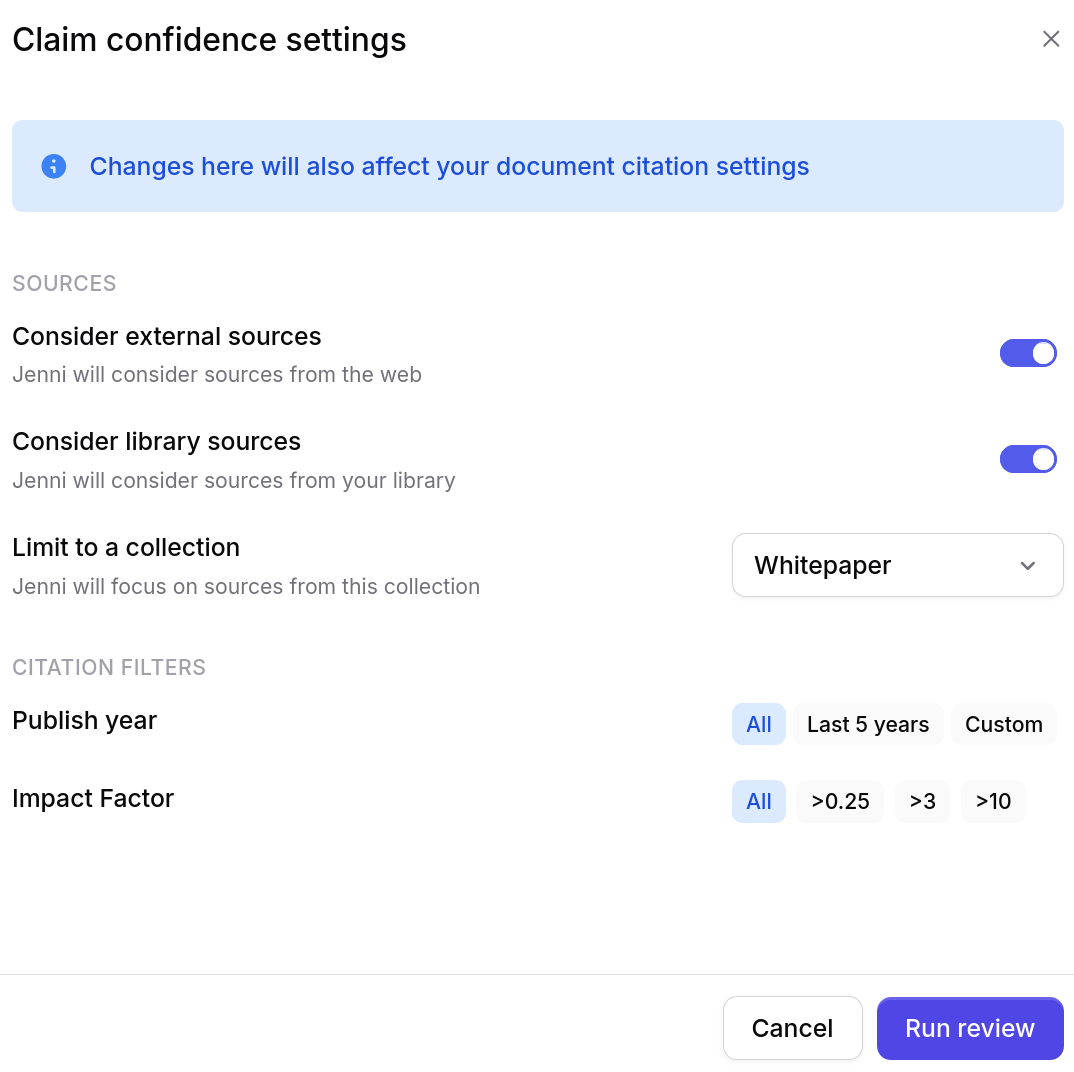
Click the Configure sources button next to Claim Confidence to control which sources the AI checks claims against:
- Consider library sources – Include or exclude your uploaded library sources
- Consider external sources – Include or exclude open access papers and web sources
- Choose a Library collection to limit source checking to that collection
- Year range – Set a minimum and maximum publication year
- Impact factor – Set a minimum journal impact factor for source consideration
These settings apply to all future Claim Confidence runs until changed.
Literature Review Workflow
Open Workflows in the main sidebar, then select Literature review from the Workflows page to research and draft a cited review without first creating a document.
- Enter your topic, up to 5,000 characters. A character counter appears as you approach the limit. With an empty topic, Try an example shows three ideas. Select one to fill the topic, then edit it to suit your review. Selecting an example does not start the workflow.
- Click Next, choose Web search, Library search, or a specific Library collection, then click Next again. If your Library is empty, click Add sources to upload PDFs without leaving the workflow.
- Set citation filters such as publication year and source requirements. You can click an earlier answer to edit it.
- Click Start literature review. The button shows the usual 15–20 minute duration; Jenni disables it while a PDF upload is still running.
- Follow the named phases on the same page: Searching, Selecting literature, Drafting sections, and Assembling and citing. Open Detailed steps for the activity log. To cancel, use the stop control in the page header and confirm Stop.
- Click Open document when the result is ready. Jenni creates a new document containing the completed review.
The workflow does not change your current document while it runs. Your setup collapses into a Setup summary above the live run card, and the Literature review card on the Workflows page shows its current phase. You can close or reload the tab, or sign in on another device, then return to Workflows > Literature review to follow the same run. Jenni also emails your verified account address when the review finishes successfully.
Jenni writes the review in a language you explicitly request in the topic. Without an explicit request, it follows the topic’s primary language rather than the interface language. A language-neutral topic produces an English review.
Click New review if you want to replace the current result and start again. After opening a result, Open document returns to the generated document. If a run is cancelled or fails, your topic stays available; choose Run again to retry it or Edit topic to revise it first. Each Literature review run counts as one Workflow.
The completed Literature review can use tables to compare studies, diagrams to explain frameworks or processes, and charts for comparable figures reported by sources when those formats communicate the material more clearly than prose. Generated charts and diagrams can include numbered figure captions with citations beneath the visual.
Research Gap Analysis Workflow
Open Workflows in the main sidebar and select Research gap analysis from the Workflows page to map established findings, disputed claims, and under-explored areas around a topic.
- Enter the topic you want to analyze With an empty topic, Try an example offers three gap-analysis ideas. Select one to fill the topic, then edit it before continuing. Selecting an example does not start the workflow.
- Click Next, choose Web search, Library search, or a specific Library collection, then click Next again. If your Library is empty, click Add sources to upload PDFs.
- Set Publish year, Impact Factor, Cited by, and Include preprints as needed. You can click an earlier answer to edit it.
- Click Start gap analysis. The button shows the usual 3–6 minute duration. Follow Searching, Extracting claims, and Mapping the gaps on the same page; use Detailed steps for the activity log. To cancel, use the stop control in the page header and confirm Stop.
- When Gap analysis ready appears, click Open document
The generated document includes a cited gap map and sections covering well-supported findings, contested claims, under-explored areas, suggested research directions, and limits on the material retrieved. Jenni writes the result in the language of your topic.
The run remains available after you reload, close the tab, or continue on another device, and Jenni emails your verified account address when it completes. The Gap Analysis card on the Workflows page shows live phase progress. Use New analysis to replace the current result and start another. If a run is cancelled or fails, use Run again or Edit topic. Each Research gap analysis run counts as one Workflow.
The Workflows page also lists up to three Recent runs whose generated documents you have opened, so you can return to those drafts directly. When you first open a completed Literature review or Research gap analysis, the run topic appears in Document prompt in the editor’s Prompts panel. You can edit it to guide further writing; opening the same document again keeps your edits. Earlier workflow documents do not gain the topic automatically.
Free accounts receive 3 Workflow runs as a lifetime allowance. Plus accounts receive 10 per billing month, and Pro accounts have unlimited Workflow runs. View your remaining allowance in Settings > Usage or from the usage meter in the profile menu.
Managing Reviews
Re-running and Stopping
Click the refresh icon next to a review type to re-run it. This is useful after making edits based on previous results.
Click the stop button during a run to cancel it. When stopped, the previous results are restored so you do not lose earlier feedback.
You can close the Reviews panel, leave the document, or refresh the page while Proofread, Claim Confidence, Source Quality, Tone of Voice, or Peer Review is running. Reopen the document and Reviews to reconnect to the in-progress run or load its completed results. Peer Review comments completed while the document was closed appear when you reopen it. If you stop a run, the panel recovers the latest saved results; stopping Peer Review also restores the preceding review’s comments.
Peer Review History
Peer Review keeps a history of completed runs. After you run Peer Review more than once, the resolved review screen shows recent runs with their time and overall score. Click a run to open its saved assessment, or click View all to browse the full run history.
Historical runs are read-only and show the saved overview, ratings, strengths, weaknesses, and reviewer questions. Current unresolved comment threads remain in the Comments panel.
Exporting Peer Review
Open a completed Peer Review and click Export. On desktop, Jenni opens the print dialog so you can print the assessment or save it as a PDF. On mobile, Jenni downloads the formatted assessment as an HTML file; open that file in your browser to read or share it. Exports include the document title, overall rating, summary, strengths, weaknesses, and reviewer questions.
Providing Feedback
Each review result and individual suggestion includes thumbs up and thumbs down buttons. Feedback does not change the current review. Jenni may use it to improve review quality as described in the Privacy Policy.
Troubleshooting
No suggestions found
The AI found nothing to flag in your document or selection. This is not an error. It means the text passed the review criteria.
Review is taking a long time
Longer documents take more time to review. The section progress bar indicates how far along the review is.
“Running for another document” message
Only one review can run at a time across all your open documents. Wait for the current review to finish, or stop it to start a new one.
Suggestions are not appearing in the editor
Check the category filter buttons in the results panel. If a category is deselected, its suggestions are hidden in the editor. Click All to show every suggestion.
Review stopped unexpectedly
If a review was still running when you left the document or refreshed the page, reopen the document and Reviews so Jenni can reconnect to it, including an in-progress Source Quality check. If a review failed rather than reconnecting, use the re-run action to start it again. Previous completed results remain available until a new run completes.
Frequently Asked Questions
How do I proofread my document with Jenni AI?
What is Claim Confidence in Jenni?
What does Source Quality check?
How do I accept or reject review suggestions?
Y to accept, N to reject, or use the arrow keys to navigate. You can also use Accept All or Reject All for bulk actions.