
AI Editing
Select text, choose a command, and review AI-suggested changes with a side-by-side diff.
FAQ ↓AI Editing lets you transform selected text using predefined or custom commands. The editor shows a diff of the proposed changes so you can review exactly what will change before accepting.
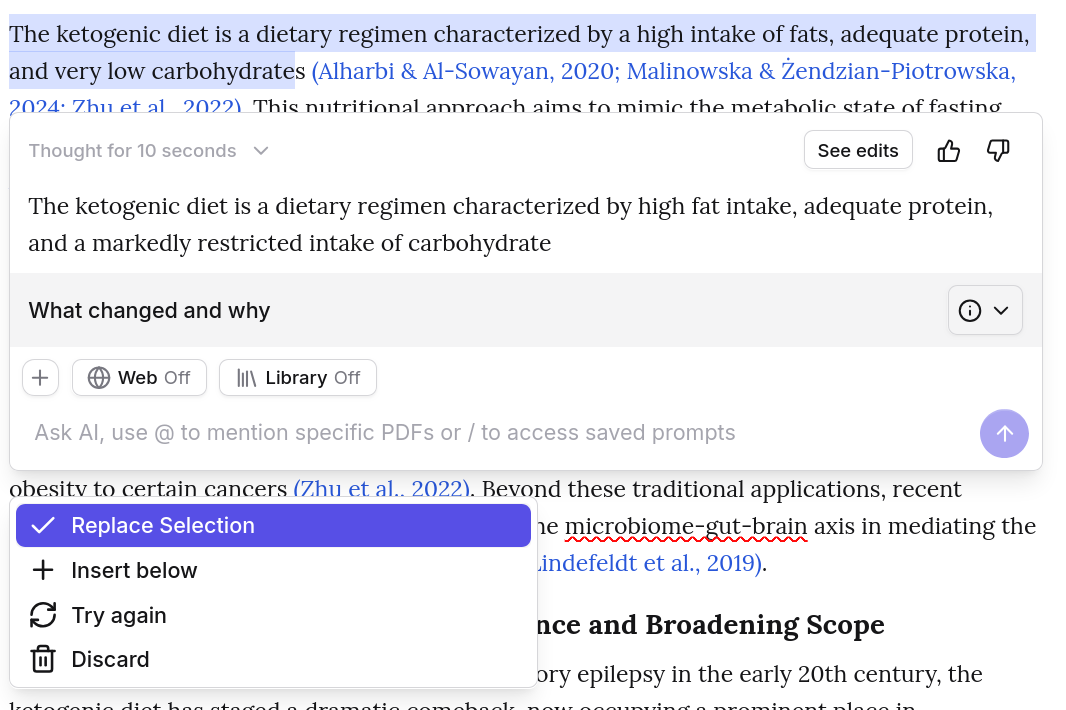
How to Use
- Select the text you want to edit
- A command menu opens by the selection
- Choose a predefined command or type a custom instruction
- Review the diff. Green highlights show added text, red highlights show removed text.
- Choose Replace Selection, Insert below, Try again, or Discard
A brief summary above the diff explains what the AI changed and why. If the selected text is inside a heading with a Section Prompt, Jenni uses that prompt as extra context for the edit.
To edit an entire table, open the table’s block menu from its grip and choose AI Edit. Review the result, then choose Replace to replace the table or Insert below to keep the original and add the result underneath.
Predefined Commands
Strengthen Writing
| Command | What It Does |
|---|---|
| Improve fluency | Choose Fix flow issues, Add transitions, or Remove redundancy |
| Paraphrase | Choose academically, casually, persuasively, boldly, or friendly |
| Simplify | Reduces complexity with shorter sentences and simpler vocabulary |
| Strengthen argument | Adds logical connectives and tightens reasoning |
| Add a counter argument | Generates an opposing perspective to the selected claim |
Transform
| Command | What It Does |
|---|---|
| Change tense | Choose Past, Present, or Future |
| Convert to bullet list | Restructures prose into a bulleted list |
| Convert to numbered list | Restructures prose into an ordered list |
| Convert to prose | Expands a list or table into paragraph form |
| Convert to table | Restructures content into a table |
| Translate | Choose English, Spanish, German, French, Chinese, or Japanese |
Academic Style
| Command | What It Does |
|---|---|
| Increase formality | Elevates register by removing contractions and colloquial phrasing |
| Technical precision | Tightens language for scientific or technical writing |
| Increase claim confidence | Strengthens hedged statements (“may suggest” becomes “demonstrates”) |
| Hedge claim confidence | Softens strong assertions (“proves” becomes “suggests”) |
Custom Instructions
Below the predefined commands, a text field accepts any free-form instruction. Type what you want (“make this more concise,” “rewrite for a general audience,” “add transition sentences”) and the AI applies it to the selected text.
Custom instructions have no format restrictions. The AI interprets your intent and generates a diff accordingly.
Choosing Context
Use the context controls above the AI Edit prompt to choose what Jenni can draw from while rewriting:
- Click + to allow web search, allow library search, or add a PDF from your library
- In Sources, click the upload icon to add one or more PDFs without leaving AI Edit. The new source appears as context while it uploads and is removed automatically if the upload fails
- Selected context appears as pills above the prompt
- Remove a pill to exclude that source or search scope
- Removing a PDF also removes its source mention from the prompt
The same context pills appear above the AI Edit input on mobile. Your selected text and custom instruction remain the primary edit request; the added context supplies supporting material.
When an edit calls for supporting evidence, Jenni can cite works already referenced in your document, sources from an earlier edit request, and sources you add through the context controls. Review the resulting citations in the diff before applying the edit.
Section Prompt Context
Section Prompts guide AI Editing when your selected text sits inside a prompted heading section. Jenni includes prompts from the active heading and its parent headings, so broad section goals and narrower subsection instructions can both shape the rewrite.
Your custom instruction still controls the edit itself. The Section Prompt adds local context, such as the section argument, tone, focus area, or constraints.
Reviewing and Applying Edits
Reviewing Changes
The diff view uses color coding:
- Green text — added by the AI
- Red text — removed from the original
A short summary always appears above the diff when the edit returns one. Read it for a quick sense of what shifted before examining the full diff.
Post-Edit Actions
| Action | What It Does |
|---|---|
| Replace Selection | Swaps the selected text with the AI version |
| Insert below | Keeps the original and adds the AI version underneath |
| Try again | Generates a new version using the same command |
| Discard | Cancels the edit and restores the original selection |
You can retry multiple times to get variations. Each retry produces a fresh result.
Tips
- Select complete sentences or paragraphs. Partial selections can produce awkward edits at the boundaries. The AI works best with grammatically complete units.
- Use Paraphrase → academically for research papers. It adjusts tone, word choice, and sentence structure to match formal academic conventions.
- Use Simplify for accessibility. When writing for a general audience, Simplify reduces jargon and shortens sentences without losing meaning.
- Try again for variations. Generate another result and compare before committing.
- Combine commands sequentially. Run Simplify first, then Increase formality. Layering commands gives you finer control than a single pass.
- Use Section Prompts for local guidance. Add a prompt to the section before editing if the rewrite needs to preserve a specific argument, tone, or constraint.
- For document-wide feedback, use Reviews instead. AI Editing works on selected text; Reviews scans your entire document for grammar, style, and claim confidence issues.