
AI Chat
A conversational assistant that reads your document, finds sources, and helps you write.
FAQ ↓AI Chat is a conversational assistant built into the editor. It can use your current document, selected Library sources, and web results to provide context-aware answers.
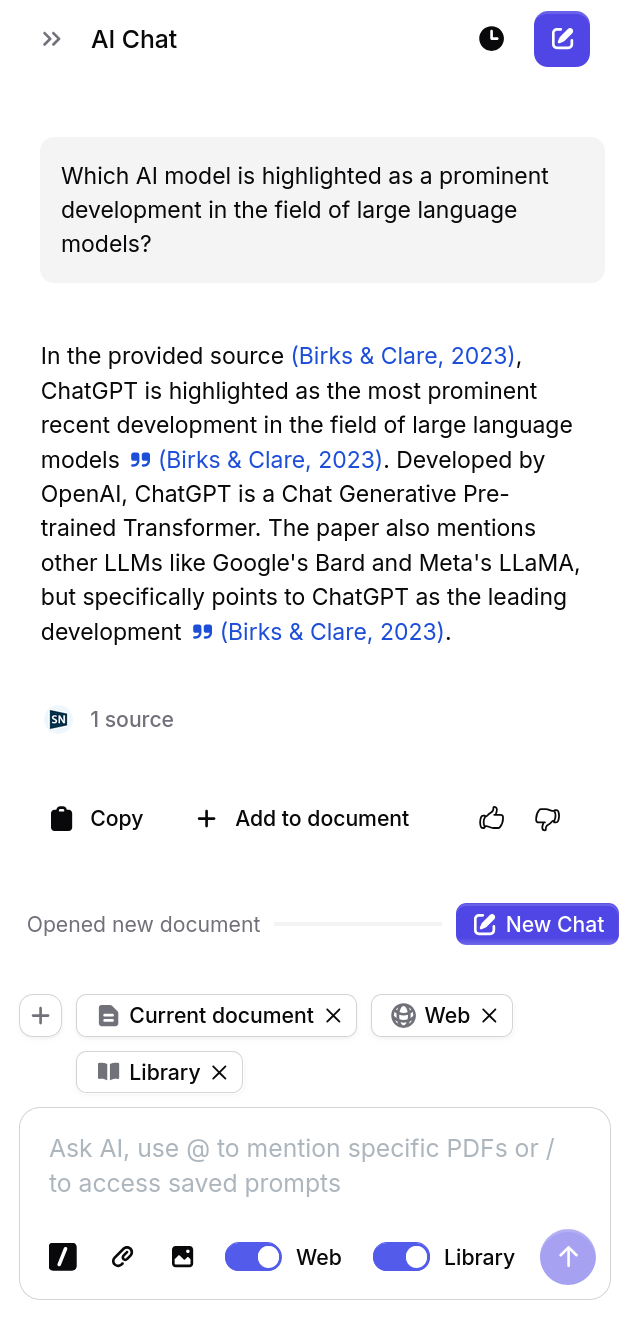
Opening the Chat
Click New > AI Chat from the left sidebar, click the AI Chat icon in the sidebar, or use the AI Chat button in the editor top bar when it is visible. The chat panel slides open to the right of your document. You can resize the panel by dragging its left edge, or collapse it by clicking the icon again.
What the Chat Can Do
AI Chat handles four broad categories of requests:
- Writing help – Draft paragraphs, rephrase sentences, suggest transitions, or continue from where you left off. Example: “Write a paragraph connecting my methodology section to the results.”
- Content questions – Ask about anything in your document and get answers grounded in what you have written. Example: “What claims in my introduction are not yet supported by a citation?”
- Editing suggestions – Request targeted feedback on tone, clarity, structure, or argumentation. Example: “Is my conclusion too vague? Suggest a more specific closing statement.”
- Research assistance – Find sources, summarize papers, or compare findings across your library. Example: “Find recent papers on transformer architectures for protein folding.”
Suggestions for other tools
As you write a request in AI Chat, Jenni can suggest a more fitting tool. A card near the composer may offer Open literature review, Open gap analysis, or a document review such as Proofread or Peer Review. Follow the suggestion or dismiss it; you can still send your Chat message.
Opening a literature review or gap analysis takes you to its setup page. Your request fills the topic when you are starting fresh; review your setup and start the workflow there. If you already have an unfinished setup or a result, Jenni opens it without replacing your work. A review suggestion opens an existing result or starts the selected review for your document.
Answering a Chat question
When Jenni needs you to choose the subject or scope of a request, its reply can show a question with three or four answer buttons. Pick an answer, type your own reply in the Chat input, or click Just answer to let Jenni proceed with its best guess. The options remain available if you reload the page before answering. You can keep a draft in the input while choosing an answer; your draft and its attachments stay there for your next message. The question and your answer count as one Chat request.
Document Context
Turn on Current document to let Chat use your draft as context. This means it can:
- Answer questions about sections by heading or content
- Include citations from your bibliography
- Understand relationships between arguments across the document
- Respond to changes you make during the current session
You do not need to copy and paste text to ask about your draft when Current document is enabled. For a specific passage, attach a quote as described below.
Source Control
Click Add context above the Chat composer to choose what the AI can use when answering:
- Sources – Select PDFs from your Library
- Collections – Select Library collections
- Current Document – Add your working draft when it is not already attached
- Filters – Narrow Library and web search
- Web and Library permissions – Choose whether each search source is Off, Ask, or On
Selected context appears as tags above the composer. Remove a tag to stop using that context.
You can also type @ in the Chat composer to add a Library source or collection. Collections appear first, followed by individual sources. Select a collection to insert a folder chip and add the collection as context. Removing the chip or its context tag removes both. Empty collections and collections already attached are omitted from the picker.
If your Library is empty, the Sources row in this menu shows an Upload action. Click it to open the PDF import flow. Collections appears after your Library contains at least one source.
When browsing Sources, click the upload icon beside source search to add one or more PDFs directly. Each PDF appears in the selected context while it uploads; Jenni waits until processing completes before sending it to Chat.
Send Quotes to Chat
You can send specific text from your document directly into AI Chat without copy-pasting:
- Highlight a passage in your draft
- Click the Chat button in the selection toolbar
- Jenni adds your selection to the chat as a temporary source
Chat can use the selection’s formatting, headings, tables, and citations when answering; parenthetical text in the quote remains part of the passage. This is a quick way to ask targeted questions about specific parts of your writing or have the AI explain or revise a passage in context. Hover over the attached quote to preview its text.
Citation Support in Responses
When the AI references a source, it appears as an inline citation in the response. Hover over a citation to see its full metadata (title, authors, year, and journal). Click the citation to navigate to its entry in your bibliography or library.
For source-heavy questions, Chat can use the sources it finds to produce a grounded response. Source links and citation details remain available so you can verify the result.
References and Sources
Below a cited response, click the card showing the number of sources to open its citation panel. The card also shows the current citation style and how many cited sources came from your Library.
- Open References to view the formatted bibliography, change the citation style or locale, and copy one reference or all references. A style or locale change applies to every loaded message in that chat thread, including later replies. New threads begin with the current document’s citation style; after you choose a different style in Chat, that thread keeps its own setting.
- Open Sources to inspect each source’s title, authors, year, publication, citation count, impact factor, and open-access status when available. You can open or save one source, or click Save to library to save the full cited source list. Collections are optional; select one or more only when you also want the sources organized into them.
You can also control references with natural-language requests. Ask Chat to show the references, use APA or another named style, or do both in one request. If the requested style is not applied automatically, open References and use the style search.
Long lists stay collapsed to keep the response compact. Use Show all references or Show all sources to expand a list, then Show less to collapse it again.
Response Formatting
AI Chat responses can include paragraphs, lists, citations, code blocks, and tables. Wide tables scroll horizontally inside the chat panel so they remain readable without stretching the workspace.
Click Copy table below a response table to copy it in a format that pastes cleanly into spreadsheets, documents, and rich text editors.
Diagrams and Charts
For questions that need calculation, Chat can run code and show Running code, Ran code, or Code failed in its progress steps. Ask it to compute a statistic from numbers you provide or to check a calculation.
Ask Chat to create a flowchart, framework, or process diagram and it can render the response as a Mermaid diagram. You can also ask for a bar, line, scatter, pie, or histogram chart. Chart cards resize to fit the Chat panel. When you add a new chart or diagram to a document, use its Edit chart action and the Source or Describe tabs to work on it; existing chart code blocks in saved documents keep their code-block controls.
Starting Chat from a Source or Image
When source details are open, click Ask AI in the header to start a chat with that source already selected as context. In a document, open an image block and click Ask AI to ask questions about the image without uploading it again.
Conversation Memory
Jenni saves your chat thread so you can view earlier messages by scrolling up and continue the conversation. For long or unrelated conversations, start a new thread to give Chat a clean context.
Managing Chat History
Click the clock icon in the top-right corner of your workspace to open your chat history. From here you can:
- Revisit past chats and pick up where you left off
- Rename a chat by hovering and clicking the pencil icon
- Delete a chat by clicking the trash icon
- Start a new thread by clicking the + button next to the clock icon
Use separate threads to organize your thinking – one thread per research question, paper, or source set.
Configuration
Chat Preferences
Click the Web or Library pill in the chat footer, or open Settings > Preferences > Search permissions, to configure how the AI searches for information:
| Setting | Control | Default |
|---|---|---|
| Web search | Off / Ask / On | Ask |
| Library search | Off / Ask / On | Ask |
Off stops the AI searching that source at all, Ask prompts you for confirmation each time, and On searches automatically whenever your question would benefit from it. Each pill shows its current setting – a pill reading Library Off means Chat cannot search your library.
Citation Filters
Open Add context and choose Filters to narrow the sources Chat can find:
- Publish year sets the publication range
- Impact factor limits results by journal impact factor
- Citation count sets a minimum citation count
- Include preprints controls whether preprints can appear
The Filters row shows the number of active filters. Use Clear filters to reset them all, or click the Active filters pill beside your context pills to reopen the filter view directly. The filters apply to Library and web search and are saved to your account, so they remain available in later chat sessions. They are separate from the citation settings on individual documents. If both Web and Library search are off, turn at least one on before changing the filters. Sources you attach directly remain available as explicit context.
Usage Limits
| Plan | Monthly Limit |
|---|---|
| Free | 5 messages (one-time) |
| Plus | 500 messages |
| Pro | Unlimited |
Message Length
A single chat message can contain up to 50,000 characters. If you paste more than that, the text stays in the input but the message cannot be sent until you shorten it.
For text longer than the limit, attach it as a PDF, paste it into your document and turn on Current document, or highlight the passage you need and click Chat to send it as a temporary source.
Attaching Files to Chat
Images
Attach an image using any of these methods:
- Click the photo icon in the chat input
- Paste with
Ctrl/Cmd + V - Drag and drop directly into the chat input
The AI can analyze charts, diagrams, screenshots, and handwritten notes. It will describe what it sees and answer questions about the visual content.
PDFs
Click the paperclip icon in the chat input to attach a PDF. The file uploads to your library automatically. Once attached, the AI can summarize the document, answer questions about its content, extract key findings, and help you cite it in your work.
Jenni waits for the PDF to finish uploading and processing before sending the message. While it is not ready, the send button shows a spinner and Waiting for upload to finish. PDFs already in your library can be selected from the source picker; sources marked Processing or Queued become available to the AI when processing completes.
Managing Attachments
Attached files appear as preview thumbnails below the chat input. Click the x on any thumbnail to remove it before sending. You can attach multiple files to a single message.
File Limits
| Limit | Free | Plus | Pro |
|---|---|---|---|
| Image size | 15 MB | 15 MB | 15 MB |
| PDF pages | 150 | 500 | 1,000 |
| PDF file size | 25 MB | 100 MB | Unlimited |
Best Practices
- Be specific. Instead of “help me write,” try “write a topic sentence for my second body paragraph that connects back to the thesis.”
- Reference your document. Ask about specific sections by name: “Does my literature review cover any papers published after 2022?”
- Iterate. If the first response is not quite right, follow up with refinements rather than starting over.
- Use selected text. Highlight a passage before sending a message to focus the AI on that specific content.
- Attach sources. Upload a PDF and ask the AI to compare its findings with your existing arguments.
Troubleshooting
Chat is not responding
If a reply fails, use Retry on the last message. If you stopped a response, Message cancelled remains visible after reloading. If Chat does not respond, reload the page and check your internet connection.
Responses are low quality or off-topic
Make sure your document has enough content for the AI to work with. Vague prompts produce vague answers. Add detail to your question or highlight a specific section before asking.
Citations are not appearing in responses
The AI only cites sources it can find in your library or through search. If you expected a citation, verify the source exists in your library and that library search is enabled in chat preferences.
Privacy and Data Protection
Chat can use your current document as context when Current document is enabled. Conversations are personal to your account and are not shared with collaborators, even on shared documents. You can delete individual threads or clear your full chat history at any time. See Privacy for details about how Jenni handles your content.
Frequently Asked Questions
How do I open AI Chat in Jenni?
Can Jenni AI Chat read my whole document?
How do I upload a PDF to AI Chat?
What is the message limit for AI Chat?
Can other people see my AI Chat conversations?
How do I control what sources AI Chat uses?
@ to mention a Library source or collection directly. Attached context appears as tags that you can remove individually.